User Dawn Access
Users Accessing Portal
Invitation E-mail:
You will receive an email from airr-admin@hpc.cam.ac.uk. This email will contain a link to access the portal; please click on that link to proceed.
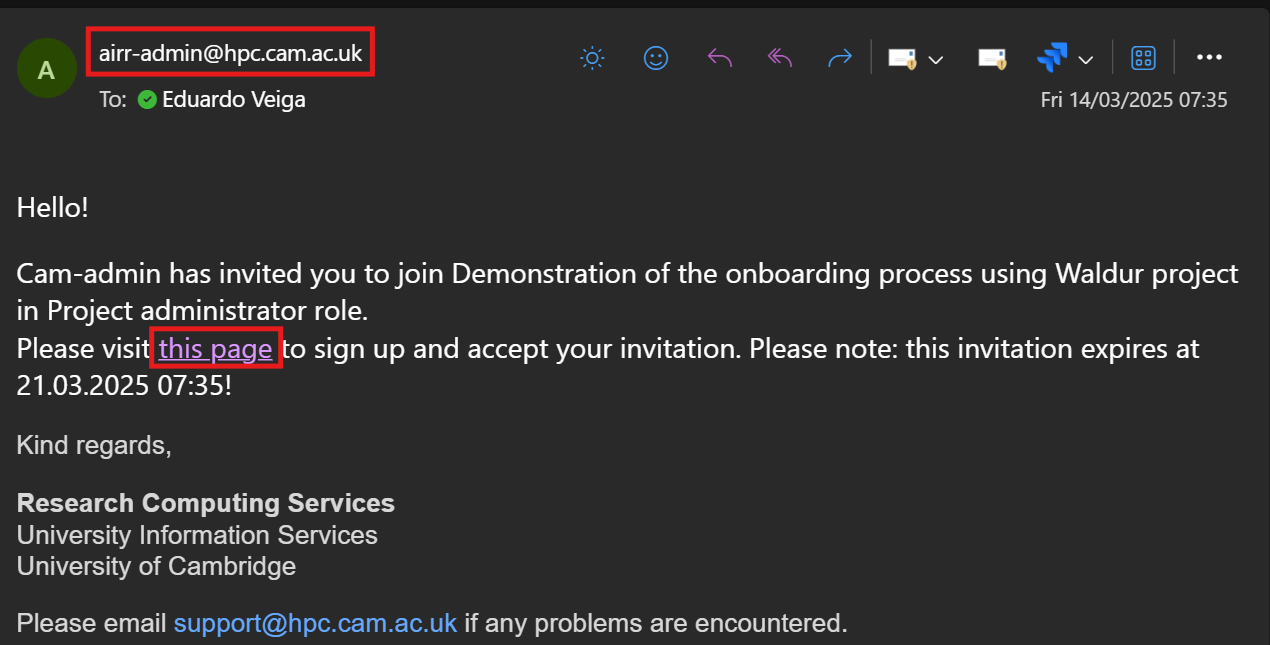
You have two choices for your identity provider:
- University Login (MyAccessID)
- Other Login (Identity of Last Resort)
If you encounter any issues, please email support@hpc.cam.ac.uk for assistance.
Make sure to select the option that corresponds to the email address where you received your invitation.
If your invitation was sent to your university account, choose the “Sign in with Keycloak” option. This will allow you to log in using your University credentials. Otherwise, please proceed to the Identity of Last Resort section.
University Login (MyAccessID)
Step 1: Click the “MyAccessID” button to authenticate using your university credentials.
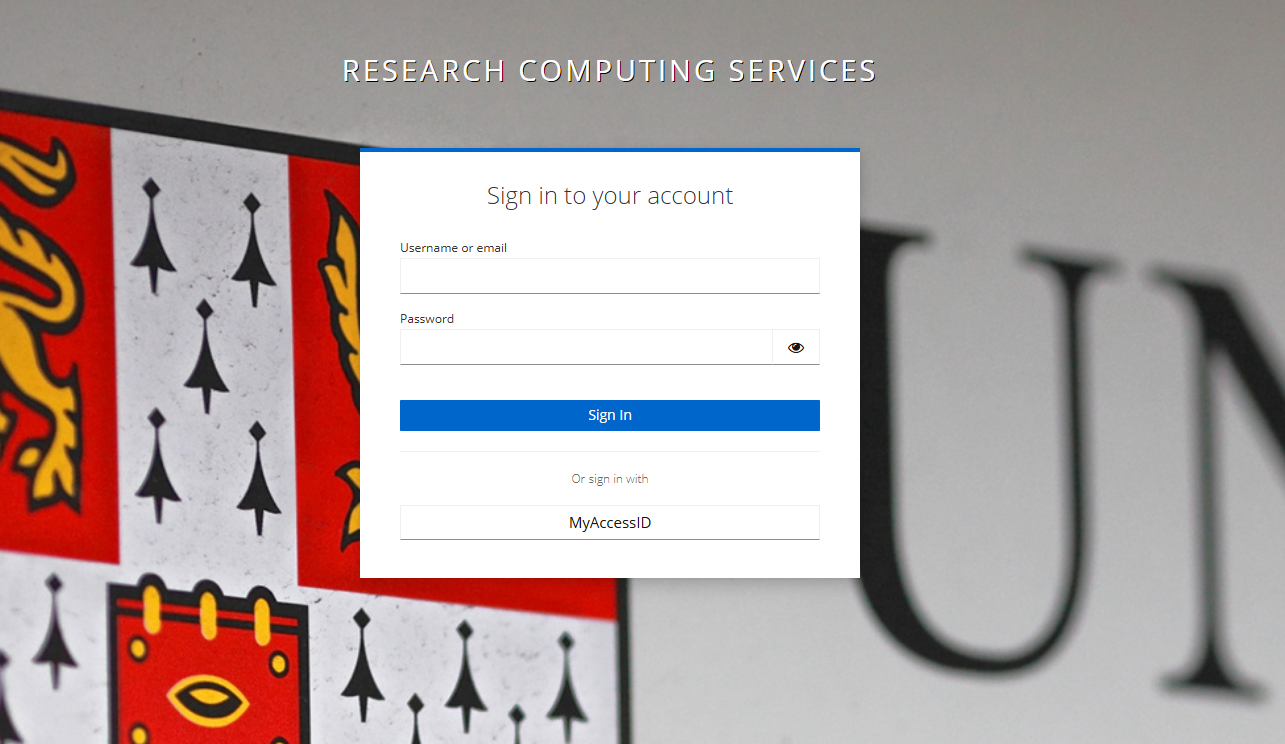
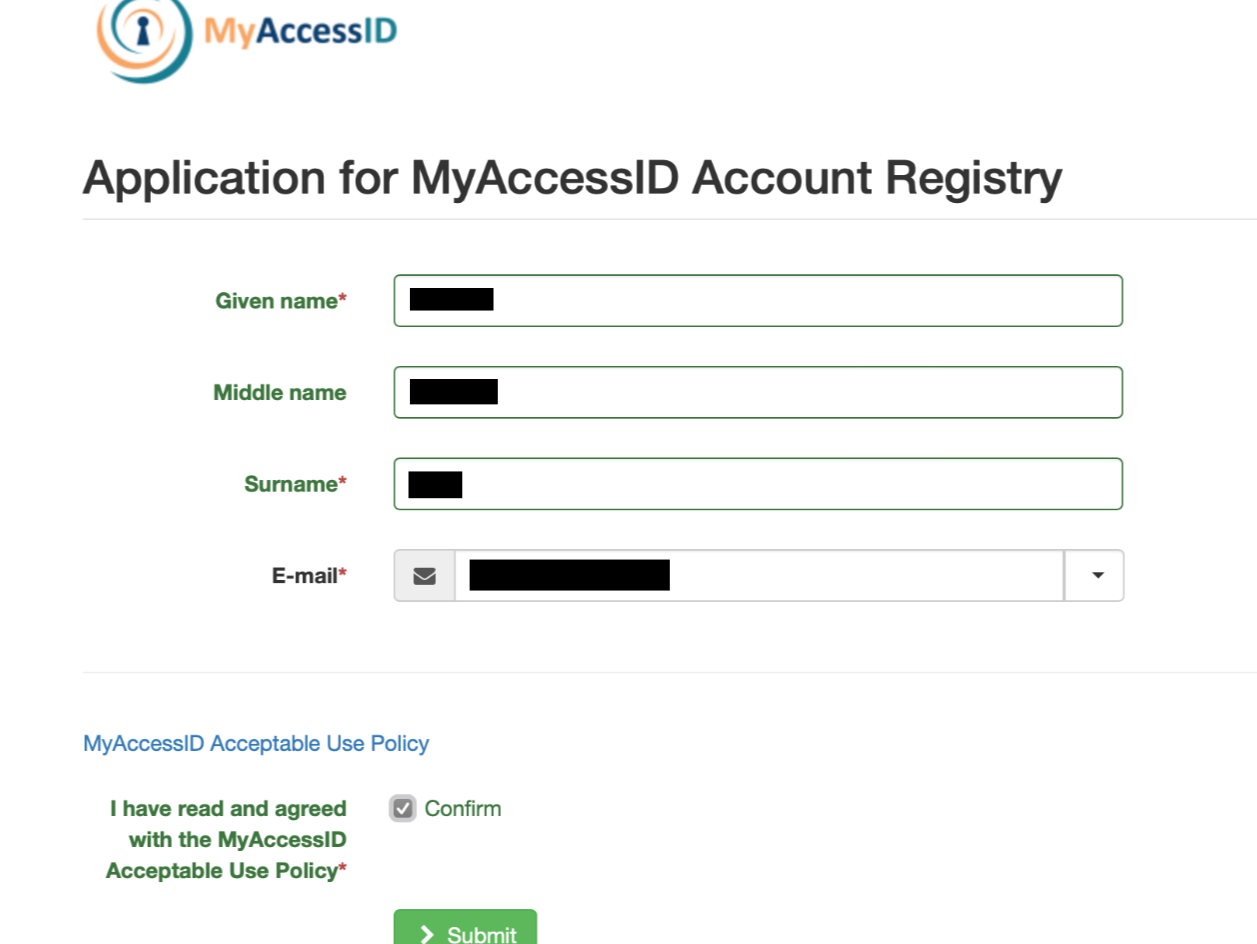
If this is your first time accessing MyAccessID, please ensure that you provide the necessary details and take a moment to review their policy. If you have further issues with using MyAccessID and you have a university email address, please contact your local IT department to ensure you are able to use MyAccessID.
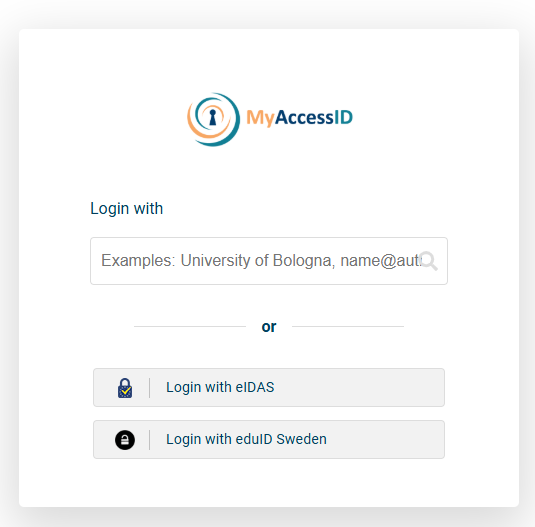
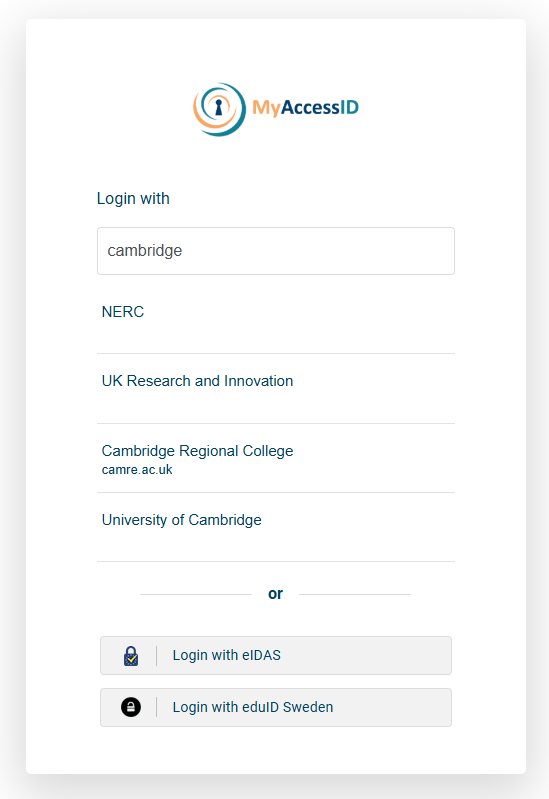
Step 2: Start typing in the name of your university/institution in the “login with” box. You will hopefully see your university appear in the list of options.
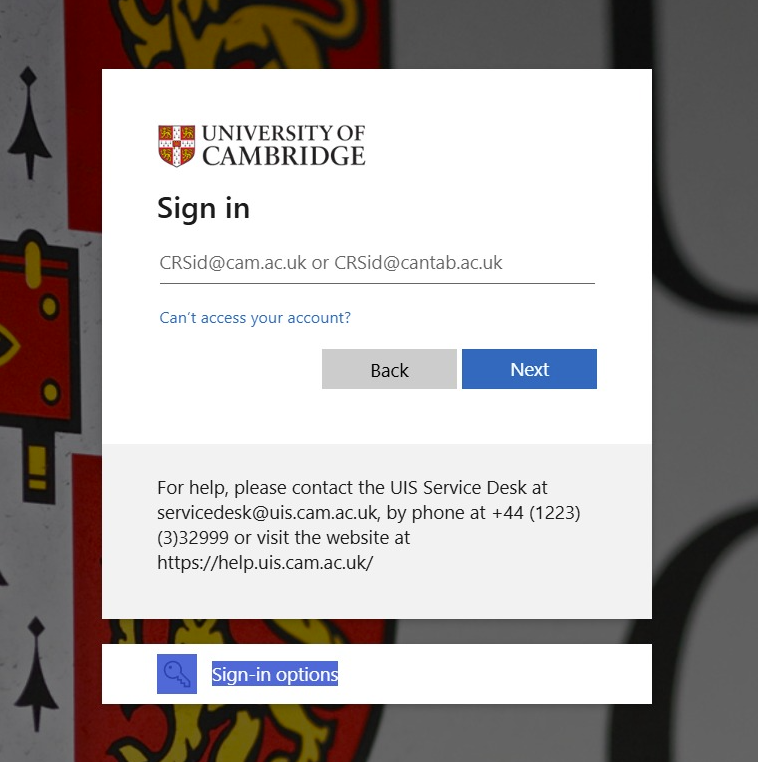
Step 3: Click on your university - this will take you to your normal university login page. Log in as you would normally. You will then be redirected back to the Cambridge access portal once you have logged in using your university credentials.
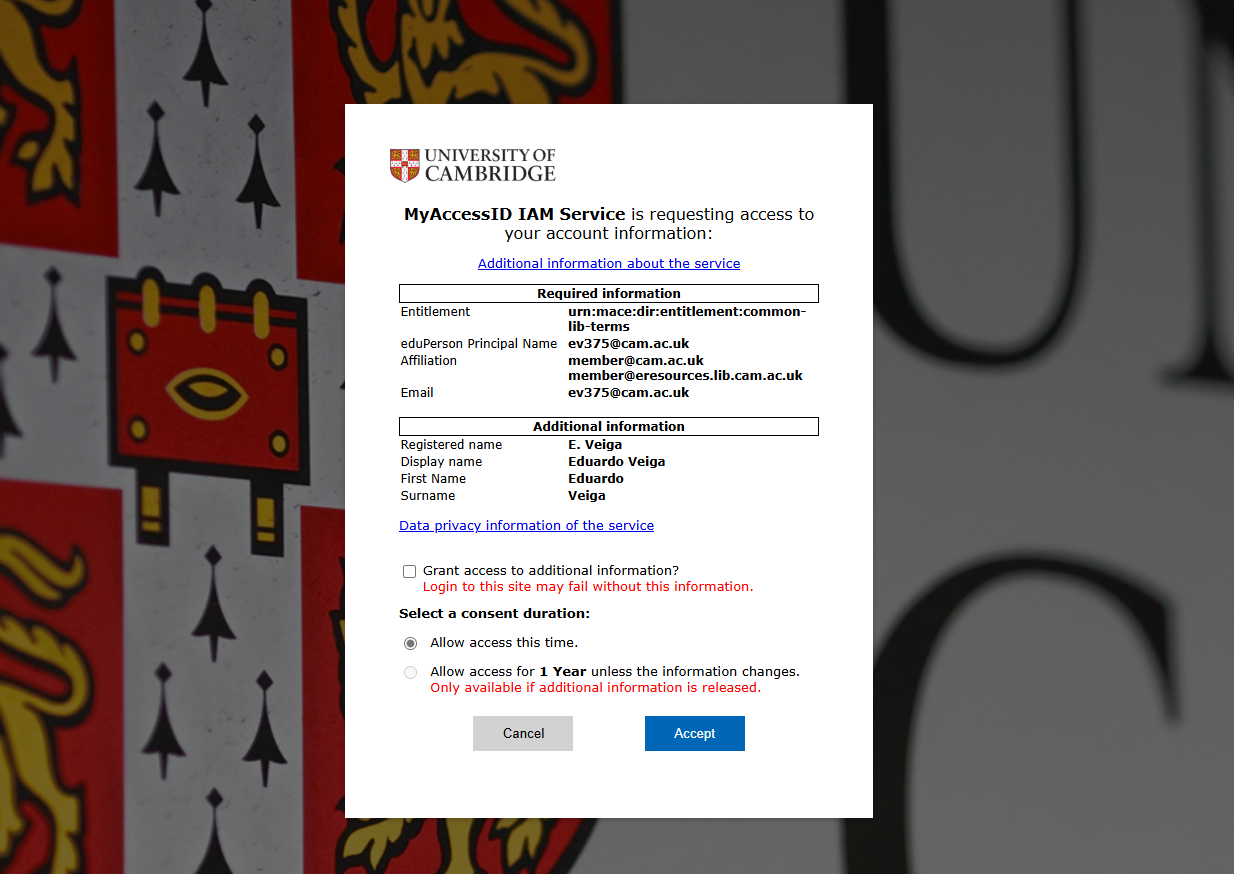
Step 4: After entering your university credentials, you will be prompted to share your MyAccessID account information with our service. Please read through the Data Privacy information and give your consent for access by clicking “Accept” to proceed.
Step 5: To secure your account, you must set up Multi-Factor Authentication (MFA). Scan the QR code using your authentication app, configure it on your phone, and enter the one-time code to complete the setup.
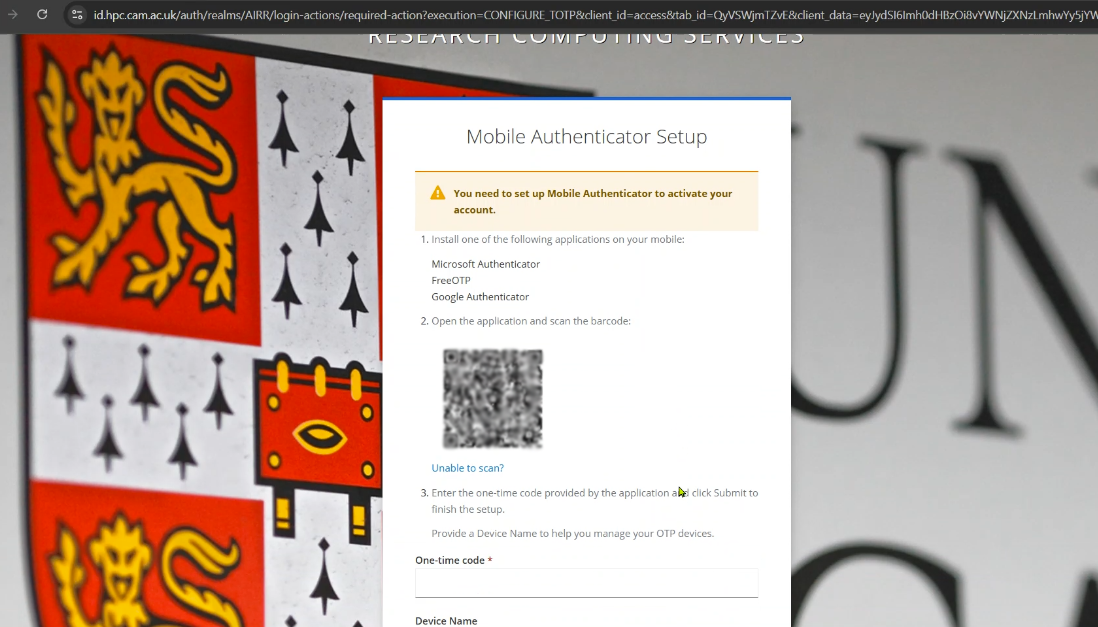
You will now have a code in your authenticator app labelled “Waldur” (Please do not delete this code as you will need to use it each time you access the Dawn access portal. For more information on MFA please see our user documentation page:https://docs.hpc.cam.ac.uk/hpc/user-guide/mfa.html)
You will now have access to the portal. Proceed to the next section Accepting the Invitation.
Identity of Last Resort - Accessing without MyAccessID
If you are experiencing difficulties using MyAccessID because you cannot find your organisation within the system, it is crucial to take the necessary steps to address this issue. In such a case, you will need to request a local account from our service desk.
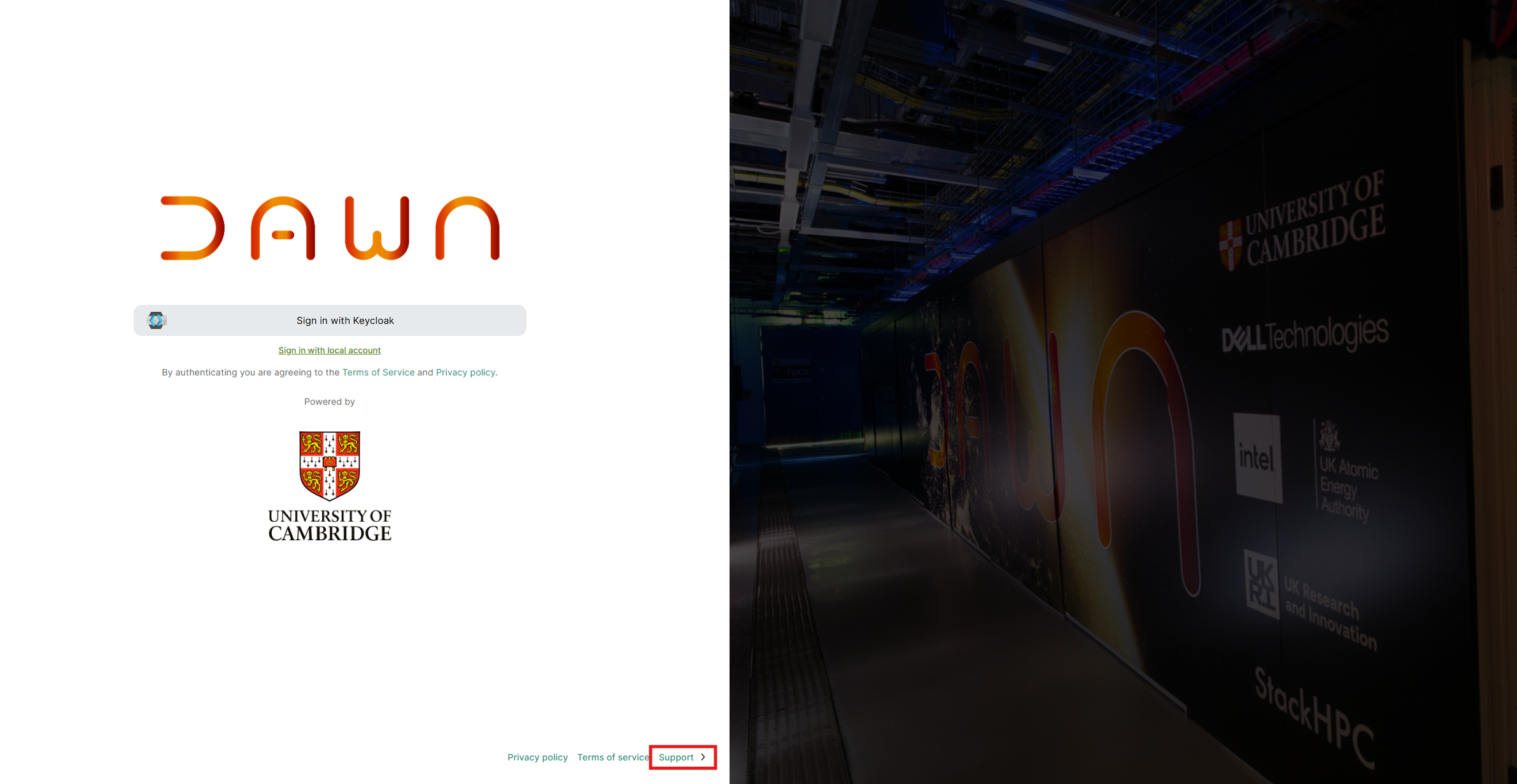
At the bottom of the page, you will find a support option. Please click on it and copy the email address: support@hpc.cam.ac.uk .
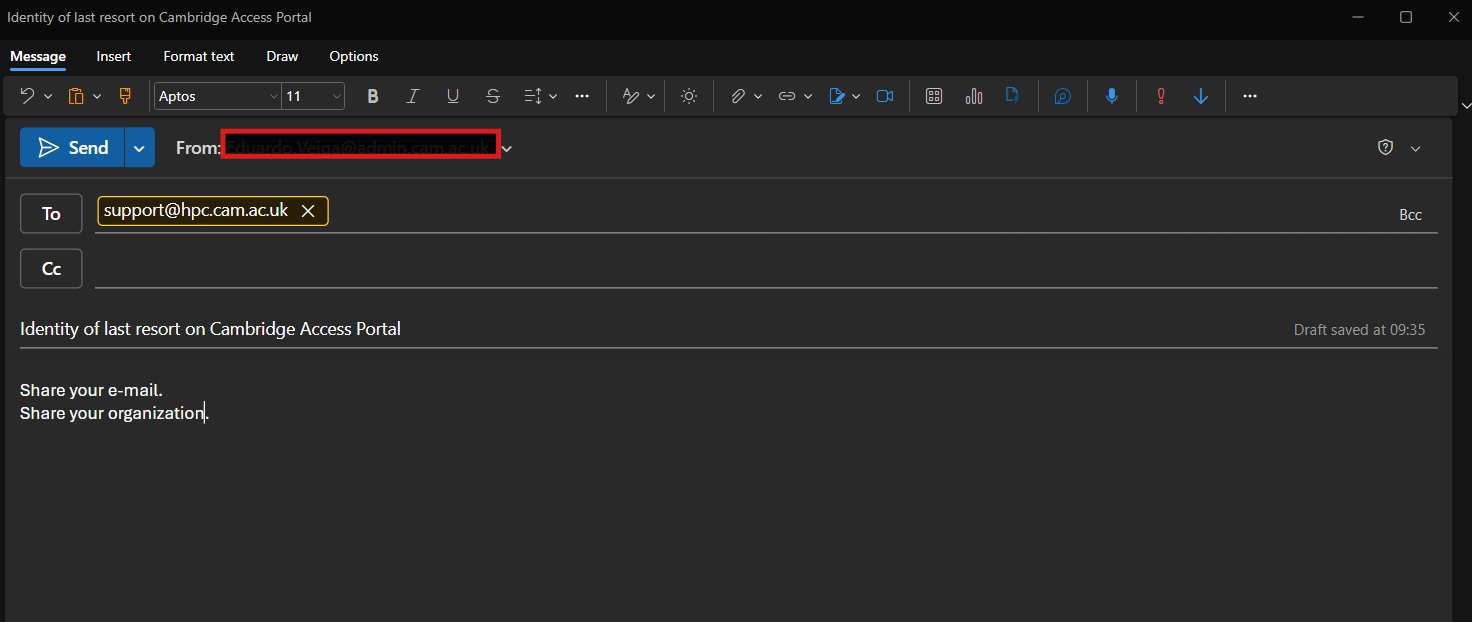
When composing your email, make sure to include the title “Identity of last resort on Cambridge Access Portal” in the subject line. This will help the support team to identify your request promptly.
Please provide the name of your organisation along with the email address that will be used to access the Portal.
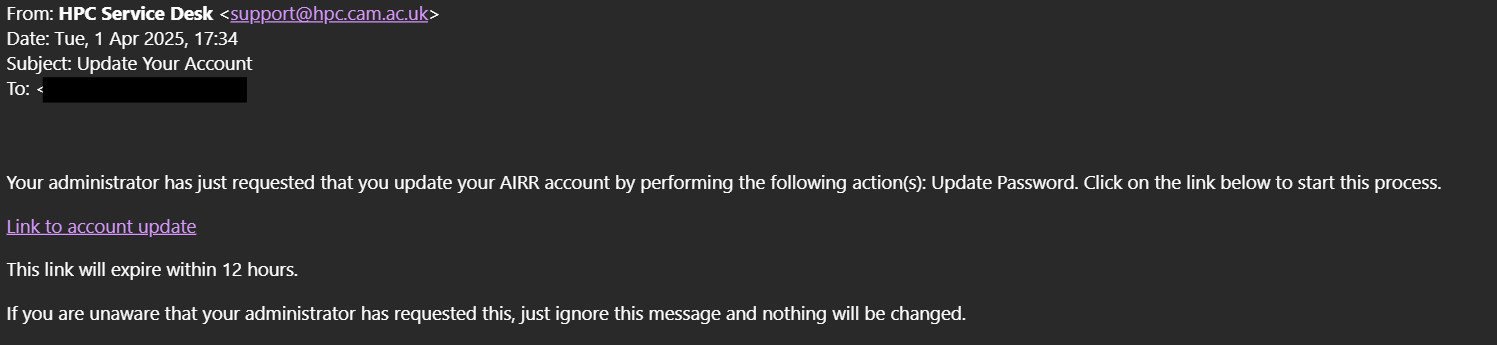
The service desk team will process your ticket and create your local account in our Keycloak system. You will receive an email with a link to setup your local account password from the service desk team.
Please click on the link provided in the email to set up your password.
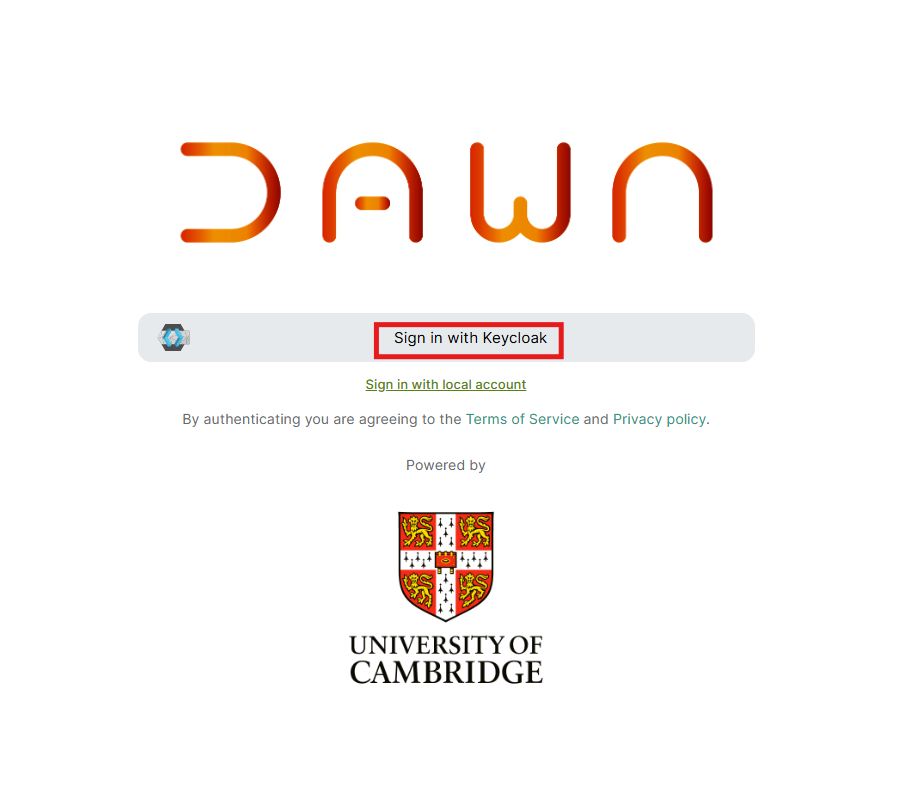
Now that you have the password, you can begin the authentication process from the project invitation link received from your PI.
Please select “Sign in with Keycloak.”
To login to the Dawn access portal, you need to provide your email address along with your newly setup password. It is important to ensure that the email you enter is identical to the one that was requested for the identity of last resort.
Furthermore, the password you use should be the one that you established by following the link that was shared with you by the service desk. This process is essential for maintaining security and ensuring that only authorised users can access the service desk functionalities.
Once you provide your local account credentials, please click on the “Sign In” button.
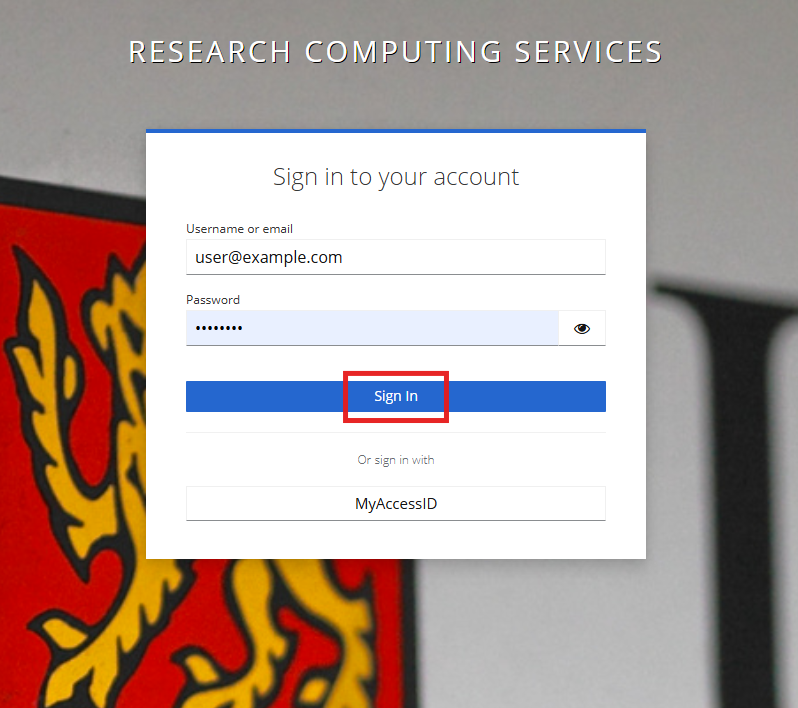
For the first-time login, you must set up Multi-Factor Authentication (MFA). Scan the QR code using your authentication app, configure it on your phone, and enter the one-time code to complete the setup.
You will now have a code in your authenticator app labelled “Waldur” (Please do not delete this code as you will need to use it each time you access the Dawn access portal. For more information on MFA please see our user documentation page: https://docs.hpc.cam.ac.uk/hpc/user-guide/mfa.html)
You will now have access to the portal. Please proceed to the next section Accepting the Invitation.
Accepting the Invitation
Upon entering the system, a pop-up notification will prompt you to accept the invitation. To continue, simply click on “Accept Invitation.”
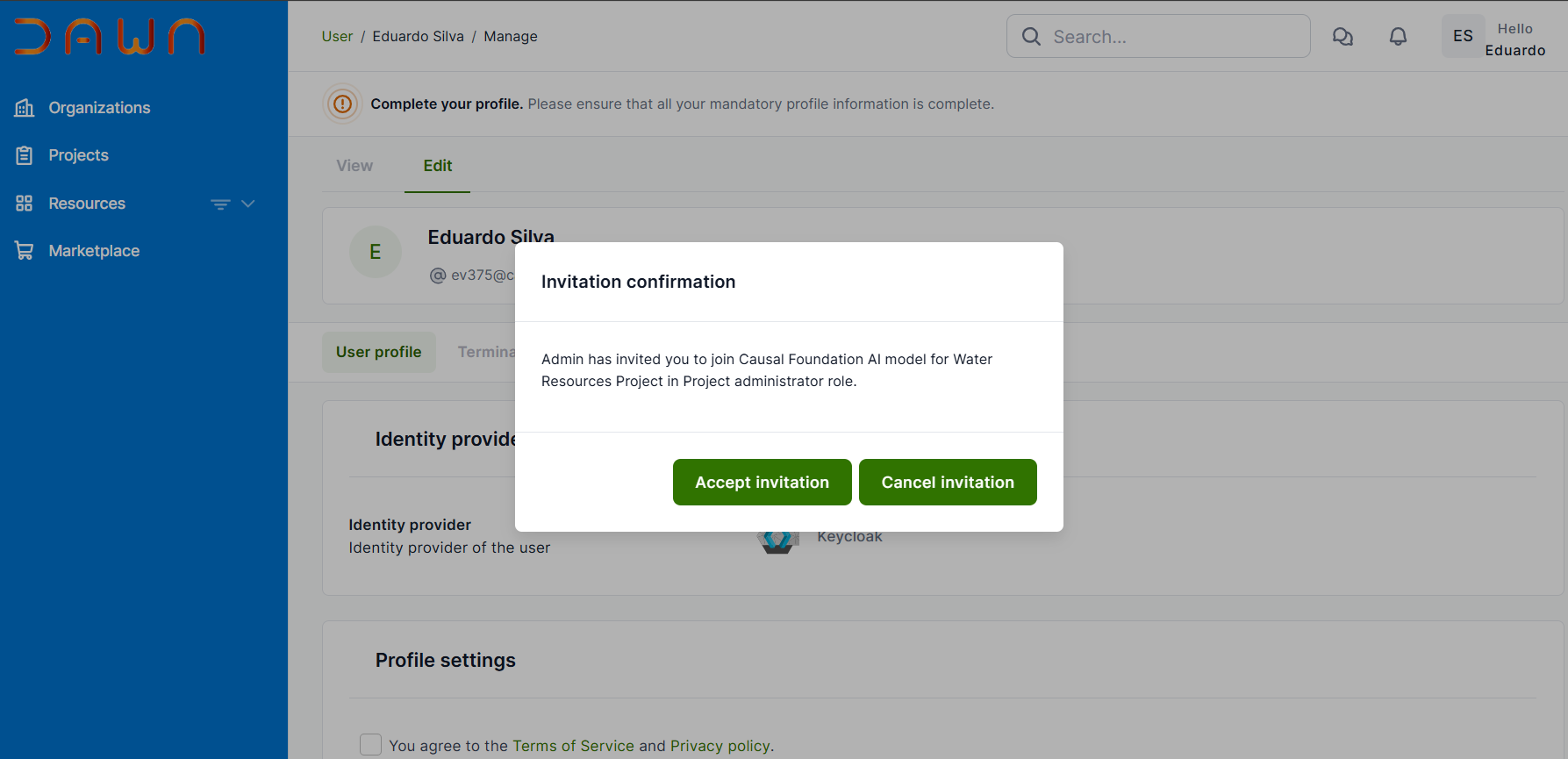
Once accepted, users need to wait approximately 5 seconds for synchronization. A pop-up notification will appear at the top right of the screen confirming that the invitation has been accepted.
Upon acceptance, you will be directed to the home page. The next step involves reading and agreeing to the terms and conditions.
Dawn has several policies that must be accepted before you can utilize any of its services. Once you log in, a list of these policies will be presented for your acceptance. You will encounter them on screens that resemble the following format.

Upon accepting the policy, you will be online and ready to begin using the system.
Accessing your project
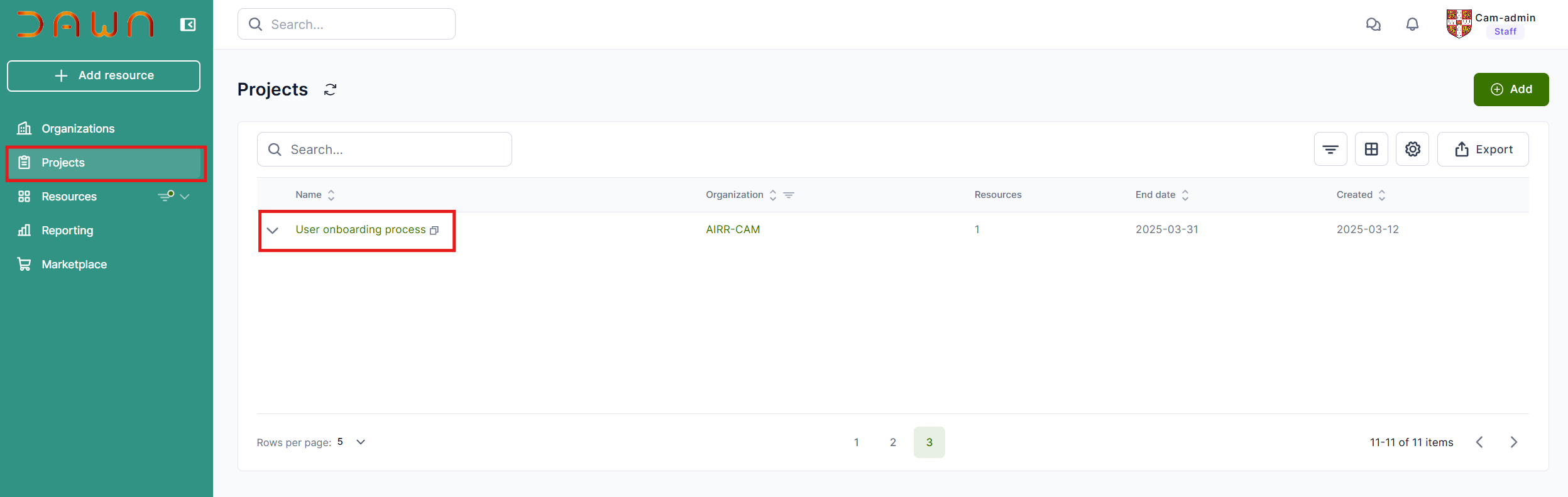
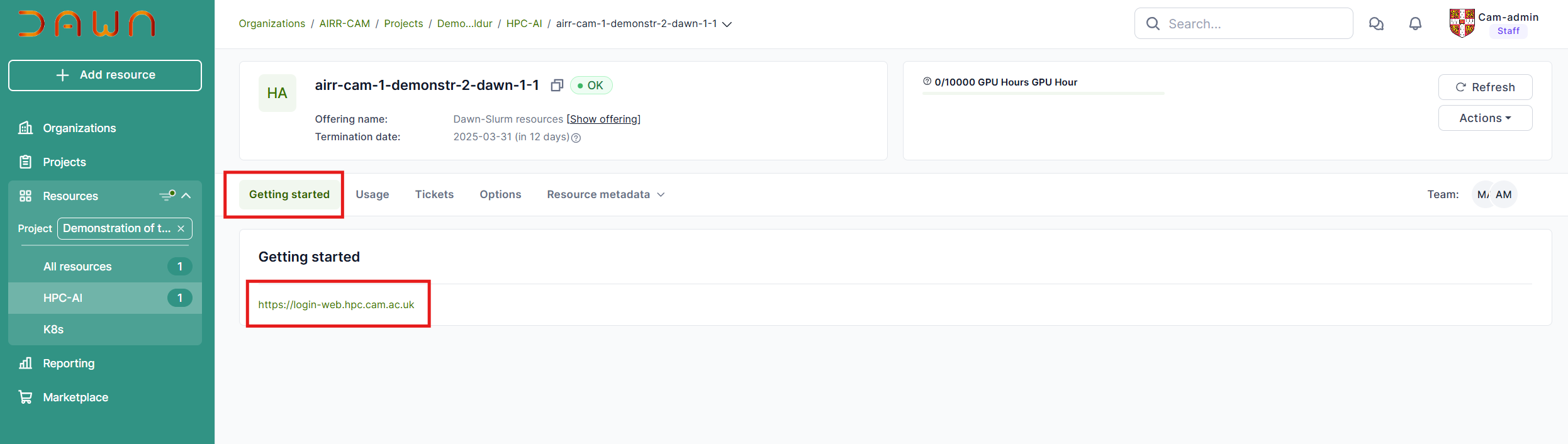
Once you recieve your Dawn username and Slurm project name, please go to projects and you can see projects that you were invited, please click on project and after that select the project that you want to access.
Upon opening your project, kindly navigate to the Resources tab to review the available resources that you can access.
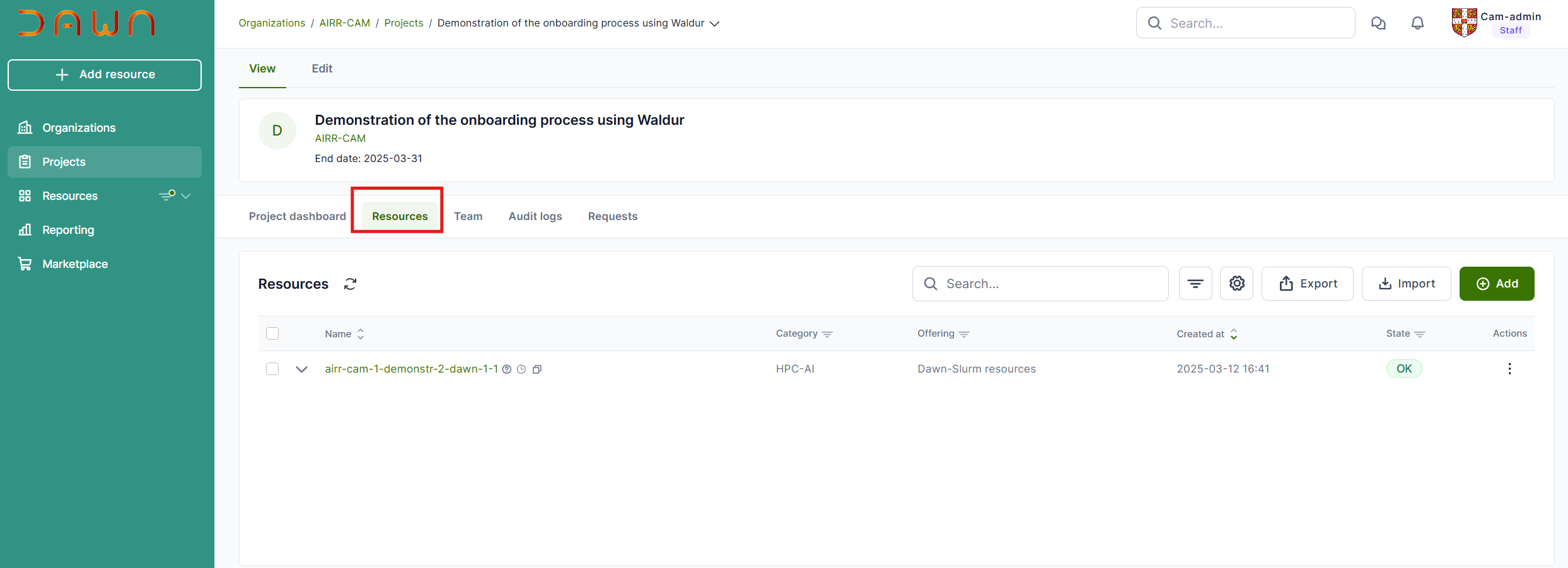
On the main page, you will find the URL to access the system. Please click on it and begin using the platform after completing the authentication process. Please note that you will gain an additional MFA code, labelled “CSD3:<userid>”, where <userid> is your Dawn username. Please do not delete this code.
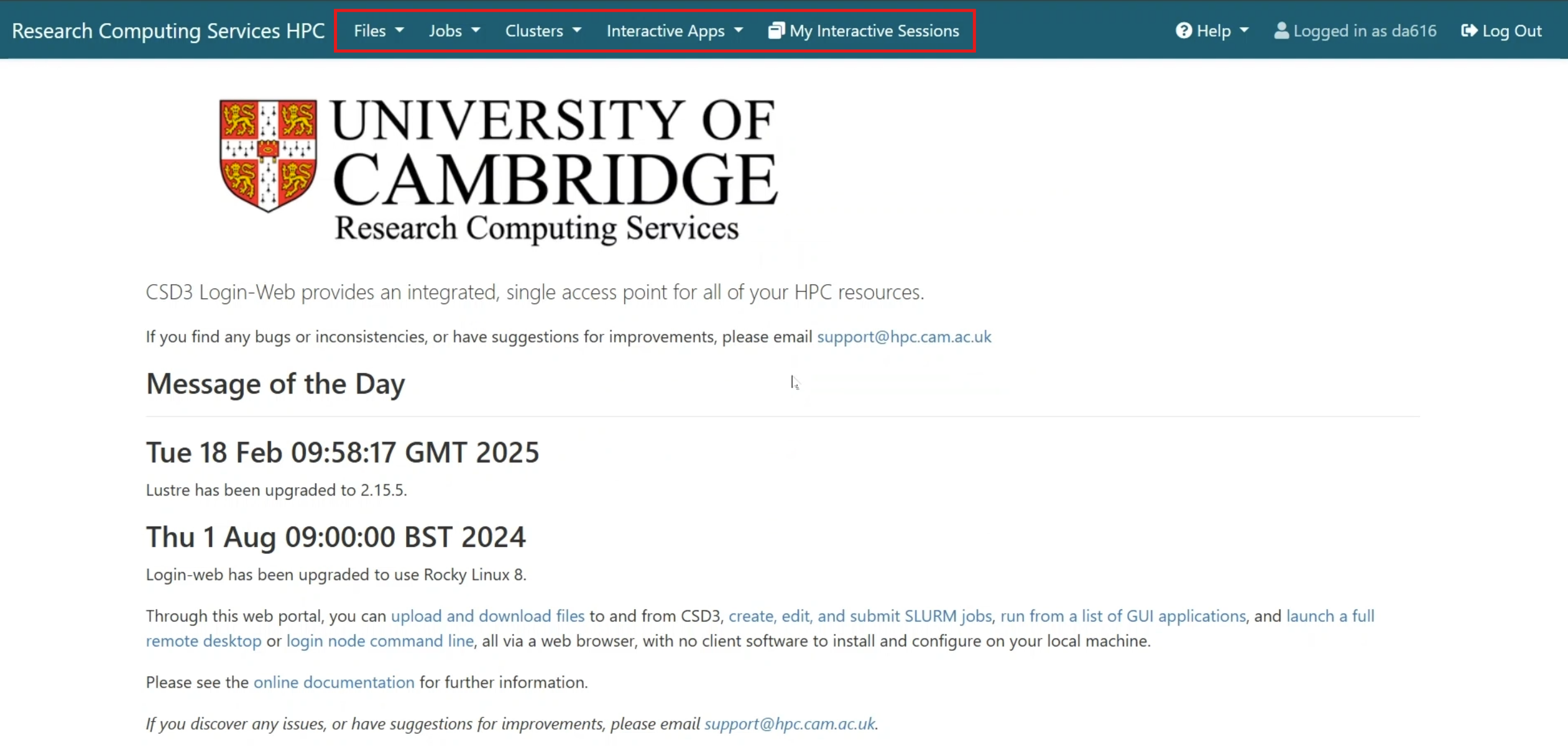
Upon completing the authentication process, you will gain access to the resources.
First Time Accessing Dawn - SSH
In addition to the above web interface (login-web) you can also access Dawn via terminal.
If you are not part of the University of Cambridge, you will need to submit you ssh public key to the service desk. Please email support@hpc.cam.ac.uk and attach your public key for Dawn ssh access.
It is strongly recommended that you read through the MultiFactor Authentication (MFA) user documentation to assist with the setup of your MFA.
Once you have submitted your SSH key and set up your MFA, you will be able to ssh to the Dawn login nodes. All Dawn users should contact Dawn initially through the Dawn login nodes.
ssh <username>@login-dawn.hpc.cam.ac.uk
For further terminal use on Dawn, please see Running jobs on Dawn